Guides

Browse Guides (Select to change)

How Our Leitner Method Works

MyLeitnerBox is based on the Leitner method, but implemented with a clear section/subsection structure for spaced repetition.

Core Structure

  • We use 5 sections.

  • Each section n contains 2^(n-1) subsections.

  • So the review cycle lengths are:

  • Section 1: 2^(1-1) = 1 subsection

  • Section 2: 2^(2-1) = 2 subsections

  • Section 3: 2^(3-1) = 4 subsections

  • Section 4: 2^(4-1) = 8 subsections

  • Section 5: 2^(5-1) = 16 subsections

As cards move to higher sections, they are reviewed less frequently.

Card States

  • Inactive: card exists in the box but is not yet in active review.
  • Active: card is in a section/subsection and participates in review.
  • Retired: card has completed the full system (graduated from Section 5).

Review Logic

  • A card becomes due when it reaches the last subsection of its current section.
  • During review:
    • Correct -> move to the next section, subsection 1.
    • Wrong -> reset to Section 1, subsection 1.
  • If a card is answered correctly in Section 5, it becomes Retired.

Why this works

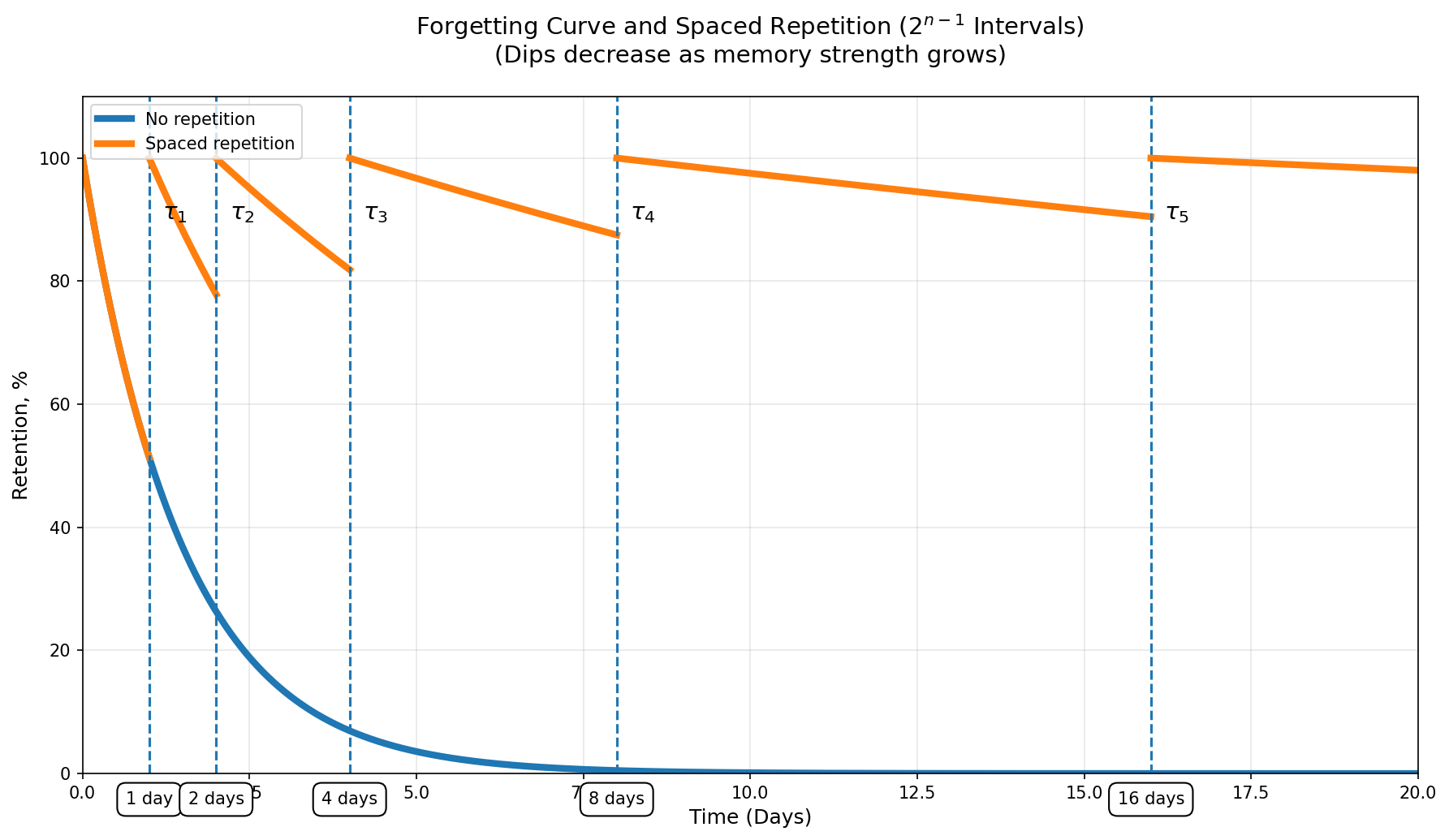
This formula-based spacing (2^(n-1)) increases intervals as memory becomes stronger, while still sending difficult cards back to the most frequent review cycle. In practice, you spend more time on weak cards and less time on mastered ones.

How to Import Flashcards to MyLeitnerBox

🎬 Introduction

Yes , you can import your existing flashcards into MyLeitnerBox, whether they come from Anki, Quizlet, a CSV/Excel file, or another study app.

This guide walks through the full import flow, including how to create a new box or add cards to a box you already have.

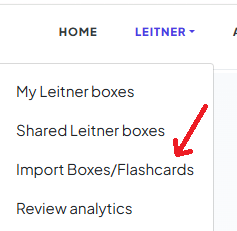
1. Open the Import Menu 

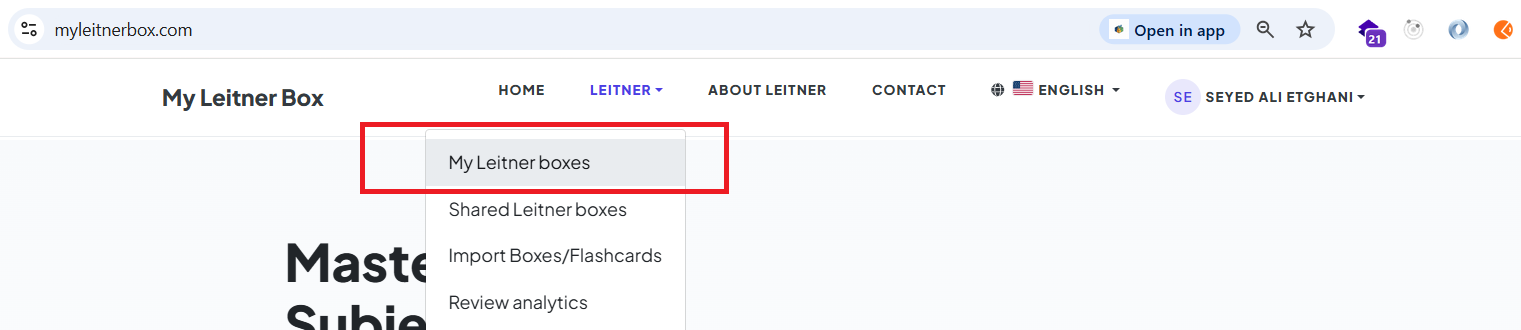
In the main menu, click on “Leitner”.
Then select “Import Boxes/Flashcards”.

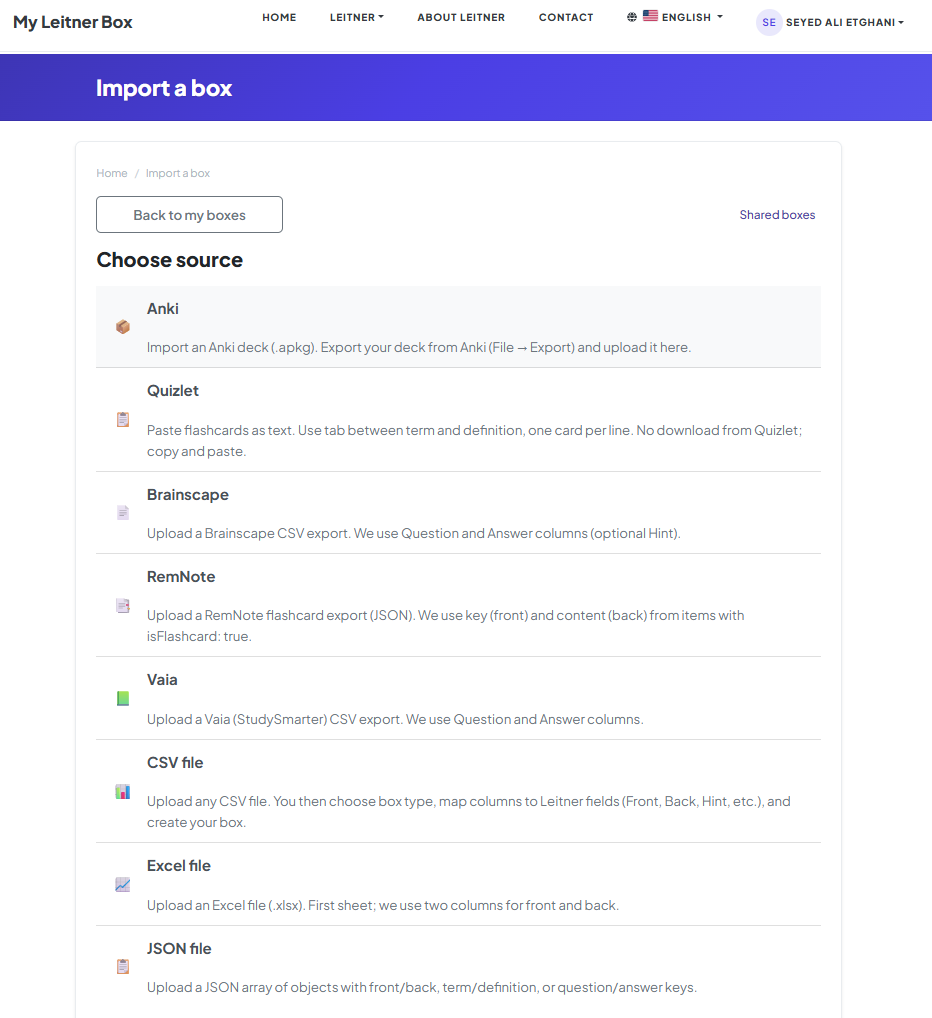
2. Choose Import Source 

You will be redirected to the “Import a Box” page.

Source What you provide

Anki

An .apkg deck file (max 30 MB)

Quizlet

Pasted text, or a .txt file (tab between term and definition)

CSV file

Any .csv spreadsheet — then map columns

Excel file

A .xlsx file (first sheet)

JSON file

A JSON array of objects

Structured text

FRONT/BACK blocks separated by ---

Brainscape

Brainscape CSV (Question/Answer)

RemNote

RemNote JSON (isFlashcard: true items)

Vaia

Vaia/StudySmarter CSV (Question/Answer)


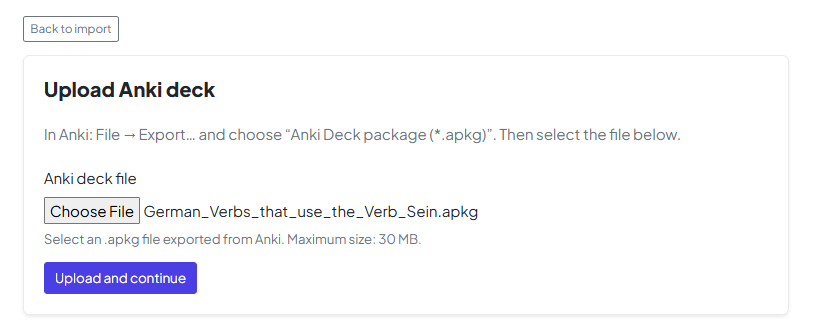
In this example, we will import an Anki deck.

3. Upload Your File 

Upload your flashcard file using the file upload option.

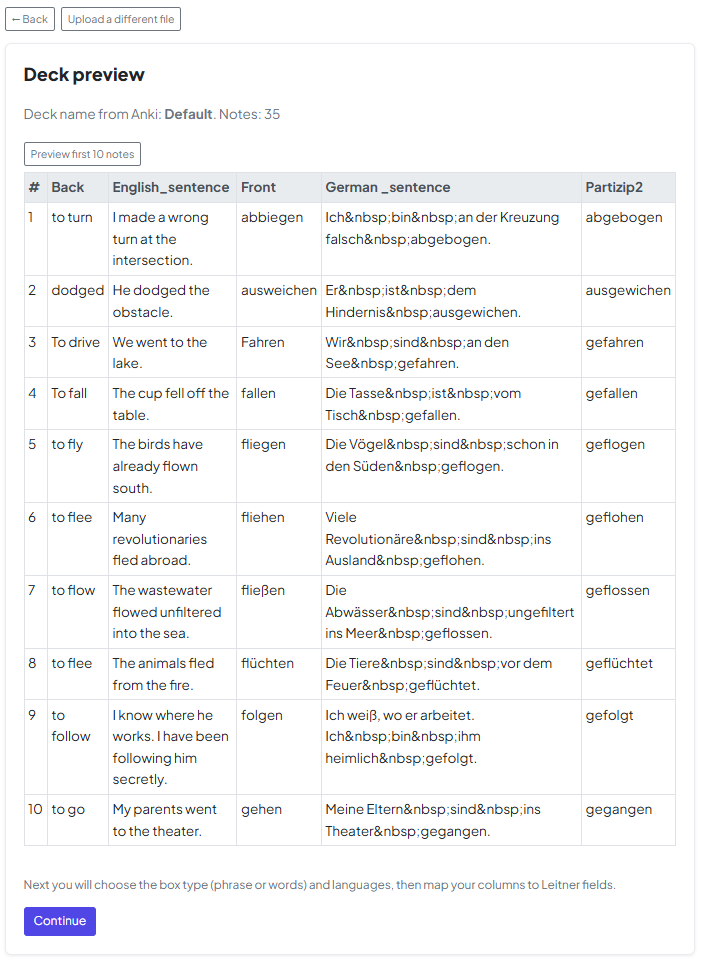
4. Preview Your Data

After uploading, you will see a preview of your data.
This step allows you to verify that the content has been imported correctly.

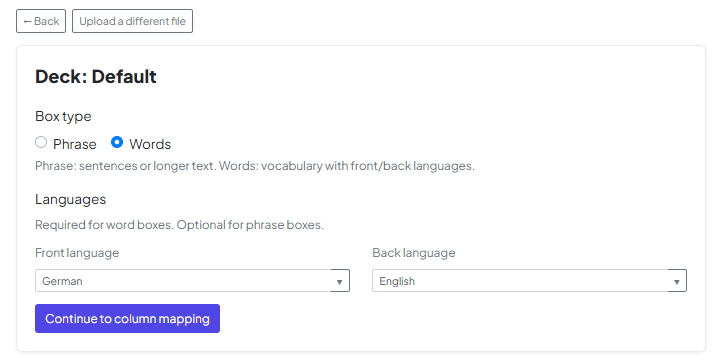
5. Configure Card Type & Language

Choose whether your deck consists of "Words" (vocabulary) or "Phrases" (longer text). At this stage, you must also set the Front and Back languages to ensure features like Text-to-Speech work correctly.

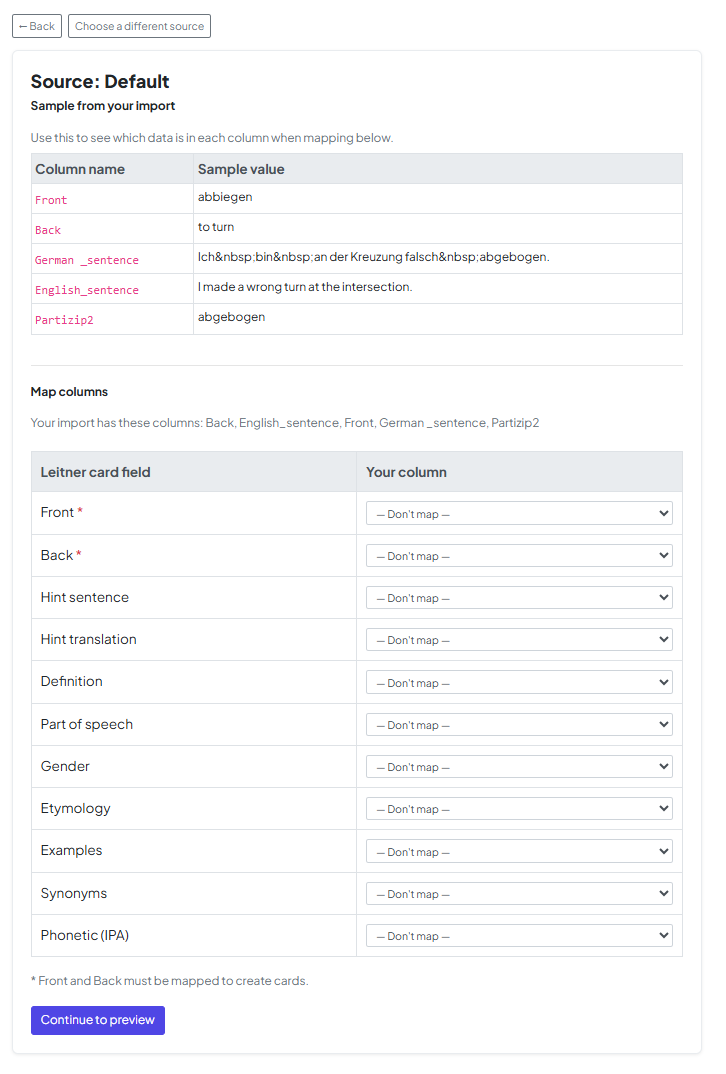
6. Map Flashcard Columns

Now, align the data from your file with the fields in MyLeitnerBox. You can map your file's columns to specific fields like Front, Back, Hint, or Definition.

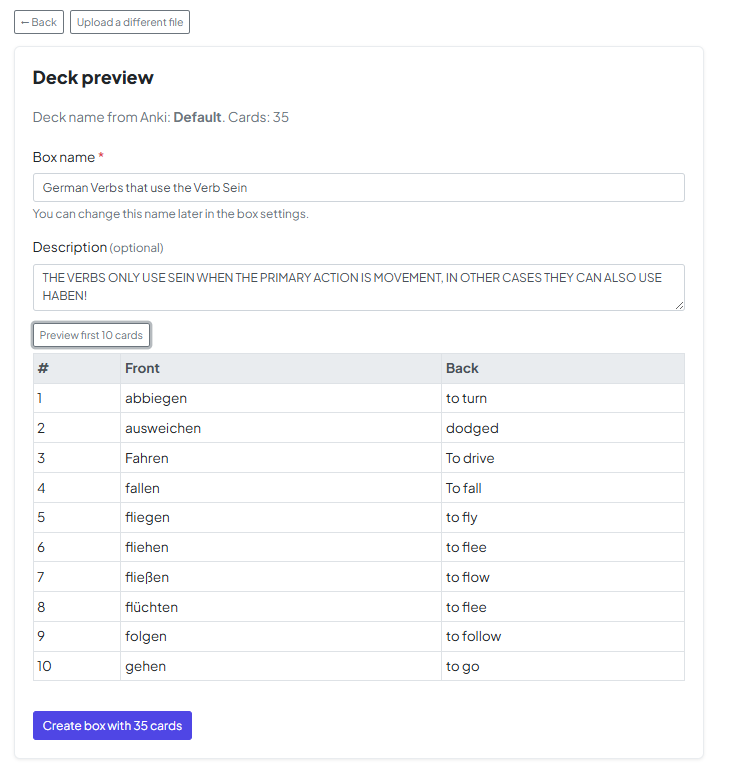
7. Name Your Box 

Choose a name and optionally add a description for your new box.

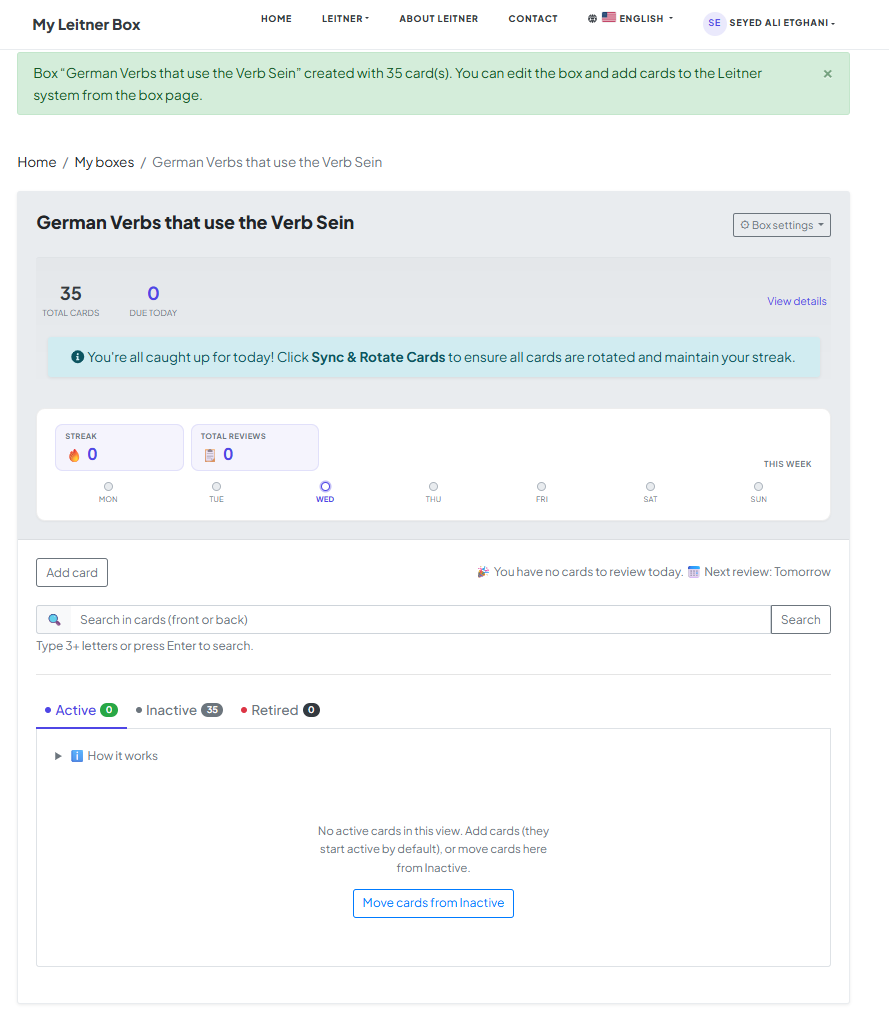
8. Activate Your Flashcards 

🎉 Your box has been created!

By default, all imported flashcards are in Queued mode.

To start using them:

  • Click on “Move cards from Queued”
  • Select how many cards you want to activate

9. Start Learning

That’s it! Your flashcards are now ready.

You can start your review session and begin learning.


Happy learning! 😊

Getting started with My Leitner Box, Part 1: Create your box

MyLeitnerBox is built around boxes: each box is a container for flashcards about one topic you want to master with the Leitner method. Name your box so it’s obvious what it’s for later (e.g., “Spanish verbs — A2” or “Biology — cell division”).

How to get started

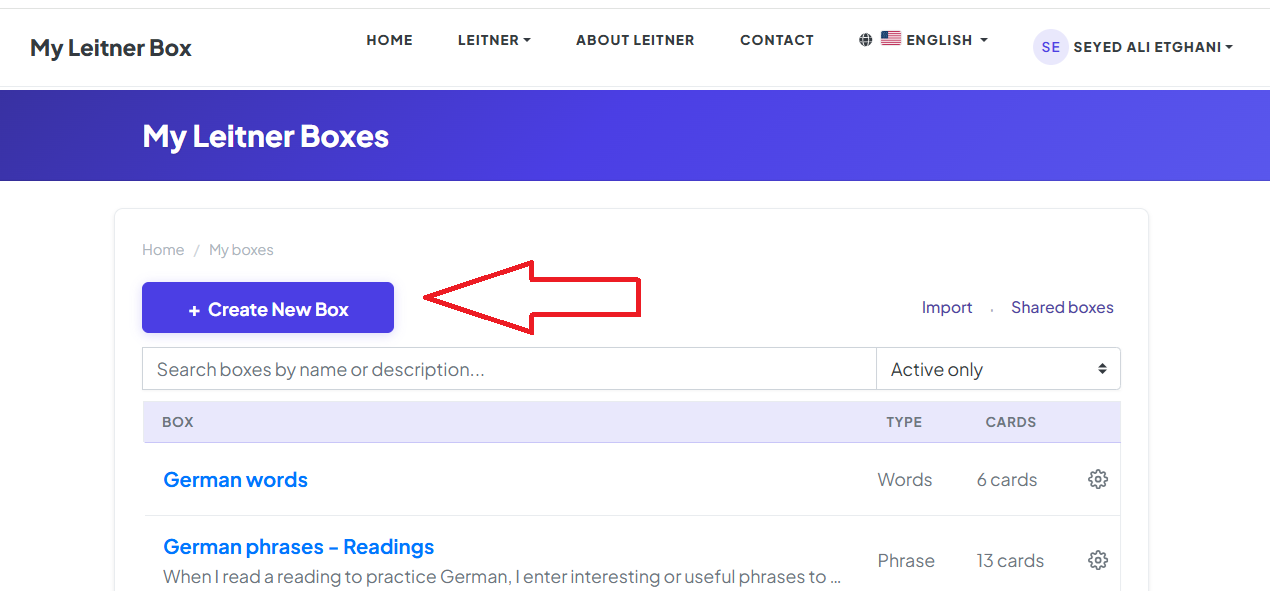
First, open the main menu and navigate to the Boxes page:

Alternatively, you can go directly to: https://www.myleitnerbox.com/leitner/

On this page, click the "Create New Box" button:

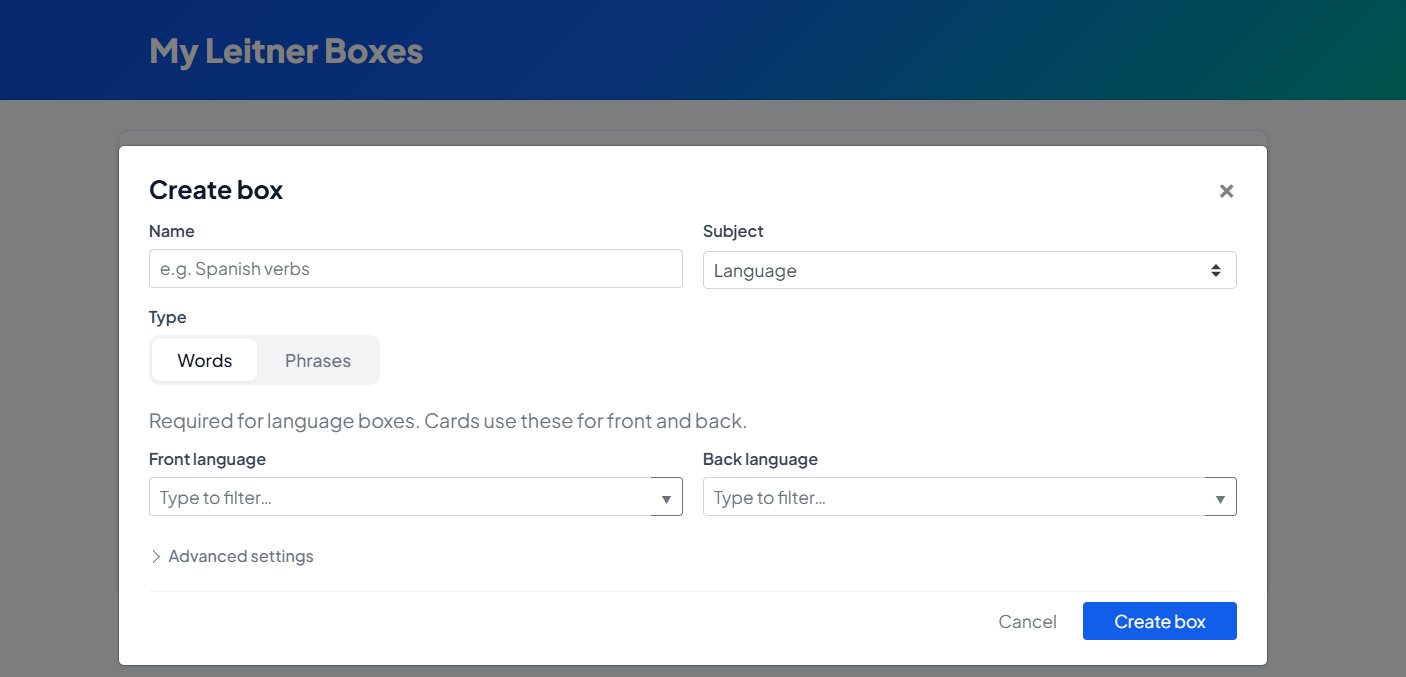
Once clicked, the box creation modal will appear:

Categories (Subject Type)

You can choose from different categories depending on what you’re learning. That choice affects options later (especially for language-related setups).

If you choose Language:

  • Box type (Phrases or Words): Phrase: Better for full sentences and longer prompts.

    • Words: Better for vocabulary-style cards.

  • Front and Back Languages: For word boxes, specifying front and back languages is required.

    • For phrase boxes, it is optional but recommended so sorting, hints, and future reports stay meaningful.

If you choose “Other” as the subject:

  • Subject Label: Enter a clear label (e.g., “Piano chords” or “Nursing — pharmacology”). This helps you stay organized and keeps your reports and filters useful as you add more boxes.

Description (Optional)

There is a short description field where you can explain what the box is about. It’s optional, but it helps when you have many boxes or want to share context with your "future self."


What's Next?

Your box is now ready and waiting! The next step is to populate it with knowledge.

To learn how, check out the next part of our guide: [Getting started with My Leitner Box, Part 2: Add flashcards]

Getting started with My Leitner Box, Part 2: Add flashcards

After you create a box, the next step is to fill it with knowledge. The kind of card you create depends on the box category you chose during setup.

This guide covers the three main flashcard types and how to get the most out of them.


How cards connect to your box

Whatever type you use, new cards are added directly to your box and enter your Leitner workflow. They will appear in your review sessions based on your schedule and how well you remember them.


1. Normal Phrases (General Topics)

Best for: History, Science, or any topic where you want a simple Front/Back setup without language-specific tools.

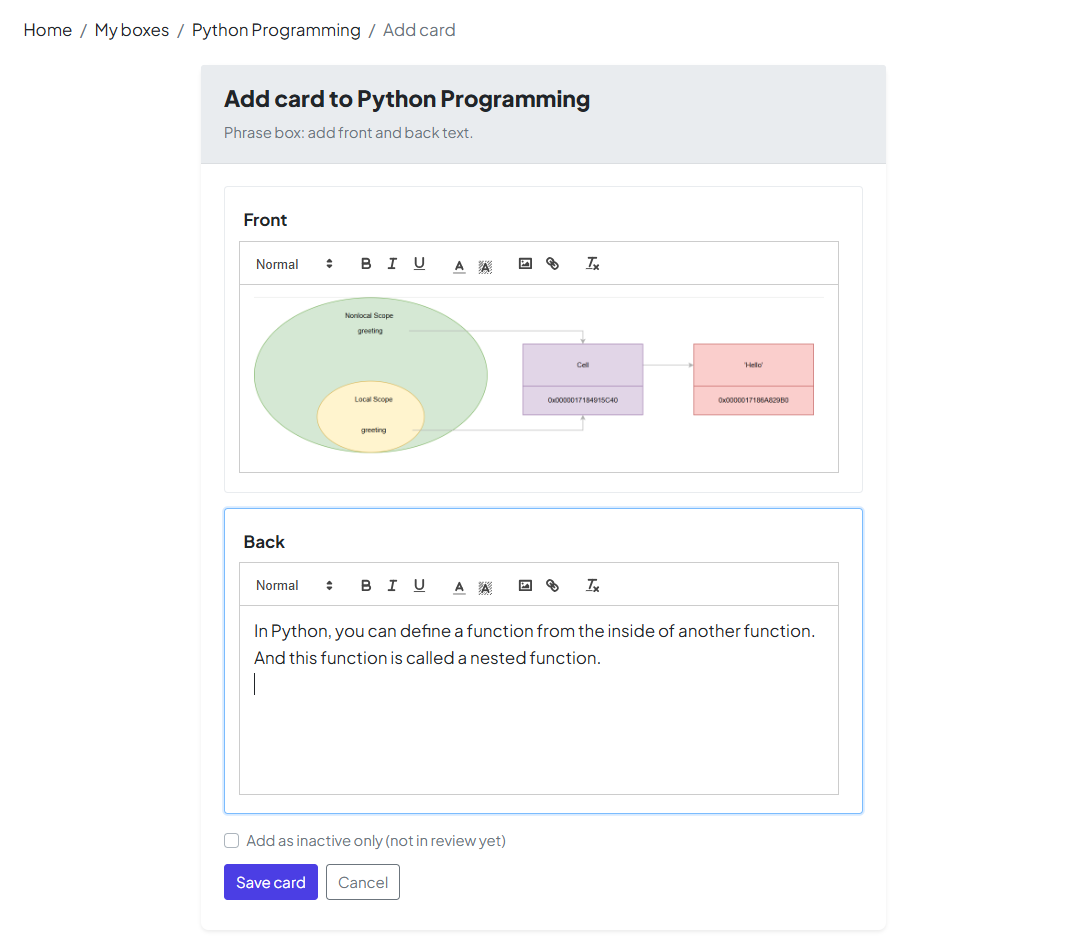
  • Rich Text: Use the built-in editor to bold key terms or create lists.

  • Images: Upload photos or diagrams to illustrate ideas when text isn't enough.

  • Recall: In review, you’ll see the Front first and try to remember the Back.


2. Language — Phrases

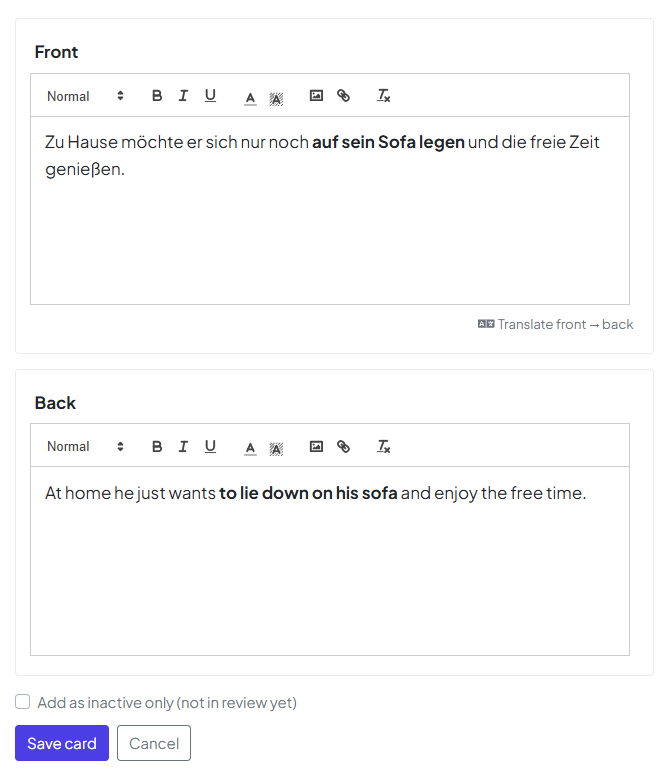
Best for: Learning in full sentences. This includes everything in "Normal Phrases" plus language-aware tools.

  • Automatic Translation: Quickly generate translations for your phrases.

  • Text-to-Speech (TTS): If you set your languages during box creation, you can use AI-based audio to hear the correct pronunciation.

  • Note: If you skipped language selection during box setup, these options may be limited.


3. Words (Vocabulary)

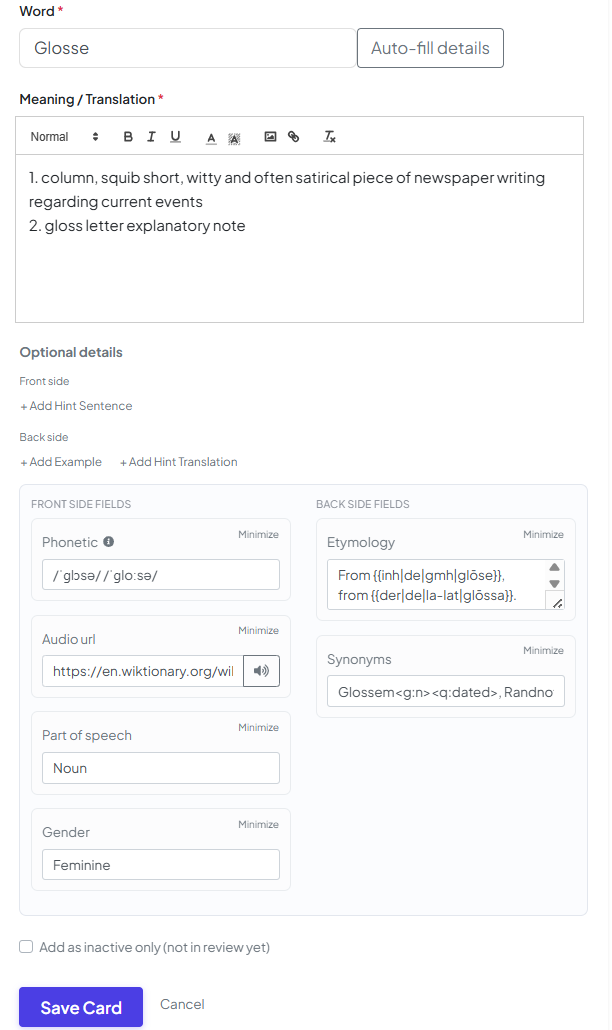
Best for: Deep vocabulary study. These cards provide more fields than a simple Front/Back to give you a 360-degree view of a word.

  • More Context: We recommend filling in as many optional fields as possible—extra context makes words much easier to remember.

  • Smart Assistance: To save time, use the Auto fill button. The app will pull structured information (definitions, examples, etc.) from Wiktionary so you don’t have to type everything by hand.


Where do new cards go?

After saving, cards typically start in Section 1.

💡 Pro Tip: Don't overwhelm yourself! If you import 100 cards at once, Section 1 can become an "enormous pile" that makes your daily reviews feel impossible. Consider marking some cards as Queued at first, then activate them gradually as you master the current batch.


What’s next?

You now have the tools to build a powerful deck. The natural next step is to put your memory to the test!

→ [Getting started with My Leitner Box, Part 3: Run a review session]

Getting started with My Leitner Box, Part 3: Run a review session

Once you’ve added cards, you are ready for the most important part: the Review. This is where you practice active recall and move cards through the Leitner sections based on your progress.

1. Open Your Box & Check Today’s Goal

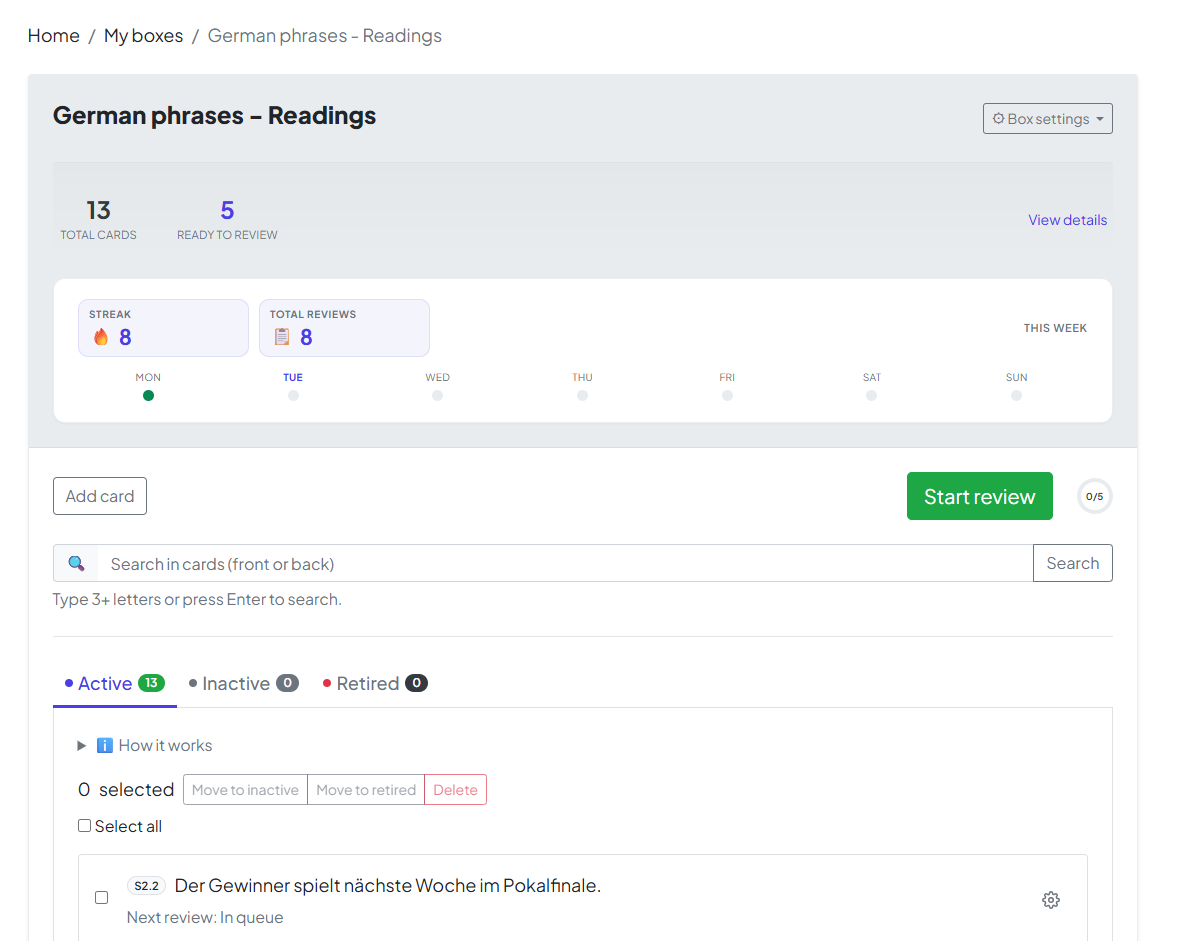
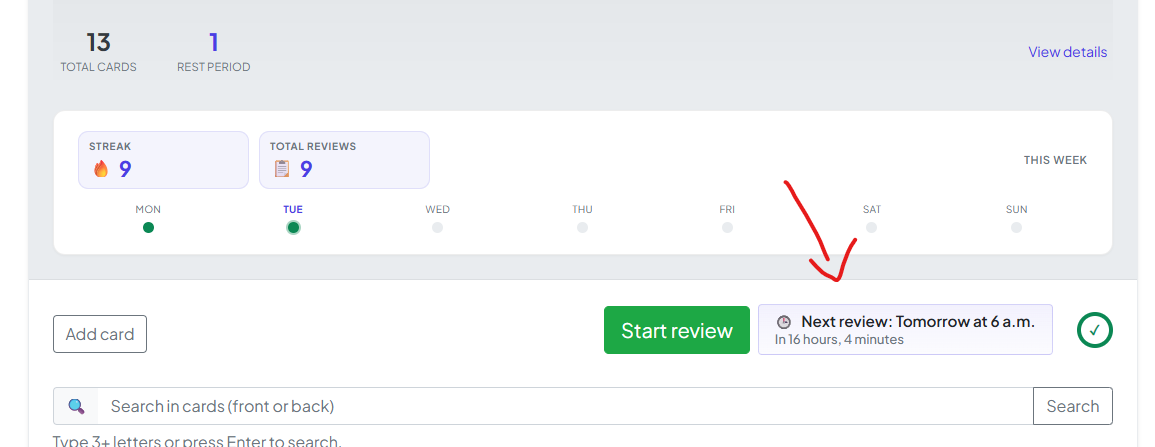
Click your Box Name to open its dashboard. At the top, you’ll see your summary:

  • Total cards: Every card in this box.

  • Ready to review: The number of cards due today. If this is above zero, you’re ready to start!

2. The Review Flow

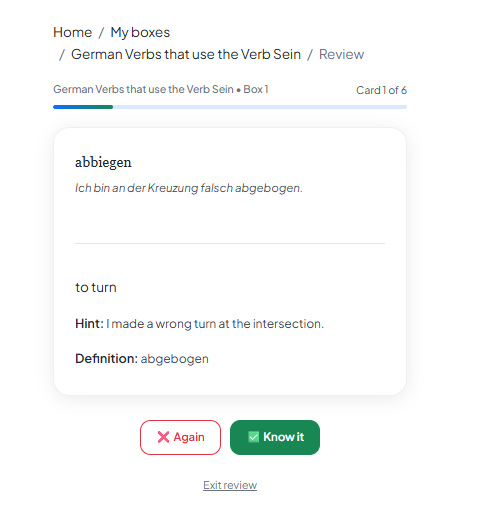
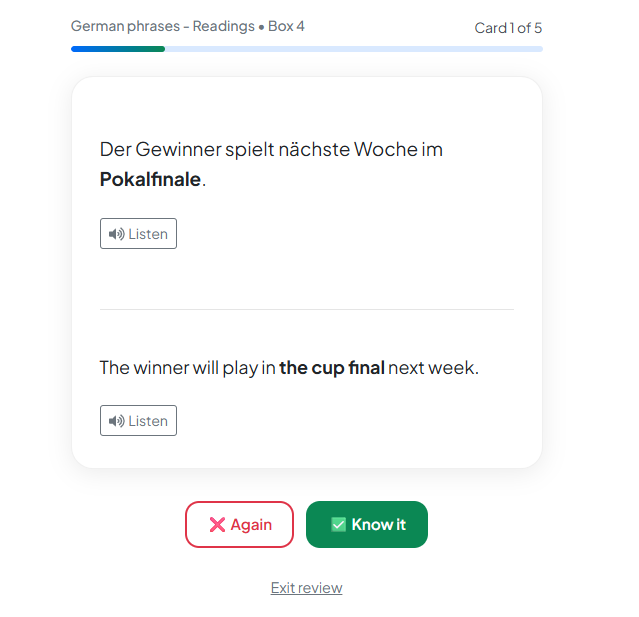
Click Start Review. The app will show you the Front of the card first. Try to recall the answer, then reveal the back to grade yourself.

🔊 Pro Tip: AI-Powered Listening

For Language Phrase boxes, look for the Listen button. We use advanced AI to provide native-level text-to-speech, helping you master pronunciation alongside memory.

Note: This is why setting your languages during box creation is so important—it tells our AI exactly how to speak your phrases! 


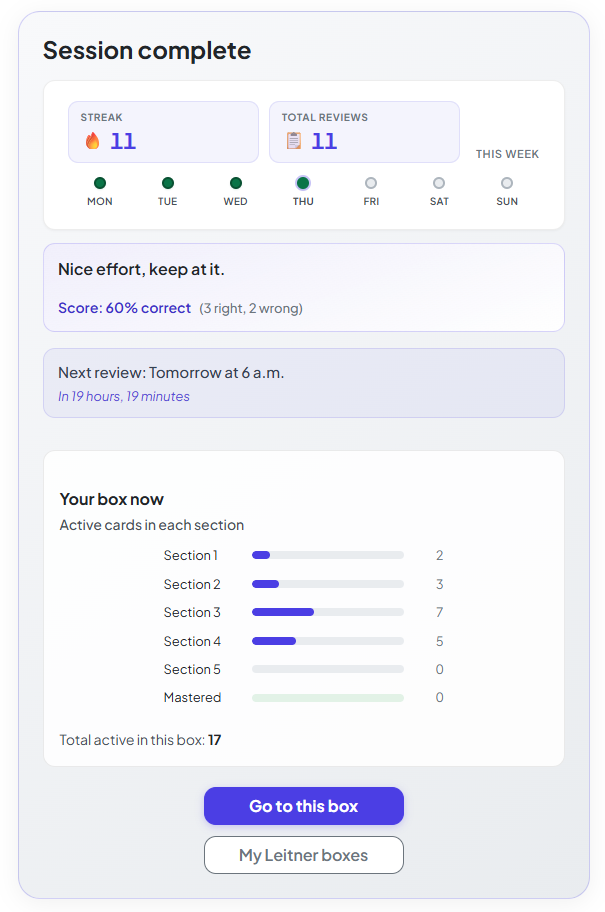
3. Completing the Session

A session is only complete when you’ve finished every card in the current batch. Finishing the full run is required to maintain your streaks and update your completion stats.

4. The "Rest" Period

After finishing, the app enforces a short rest period. Spaced repetition is most effective when you don't over-study the same cards in a single day. Your box page will show exactly when your next session is available.


You’re All Set!

You now have the full loop: Create → Add → Review. By following this cycle, you’re ensuring that what you learn today stays with you for the long term.

Happy learning—we’re rooting for you!

Mastering Review Analytics

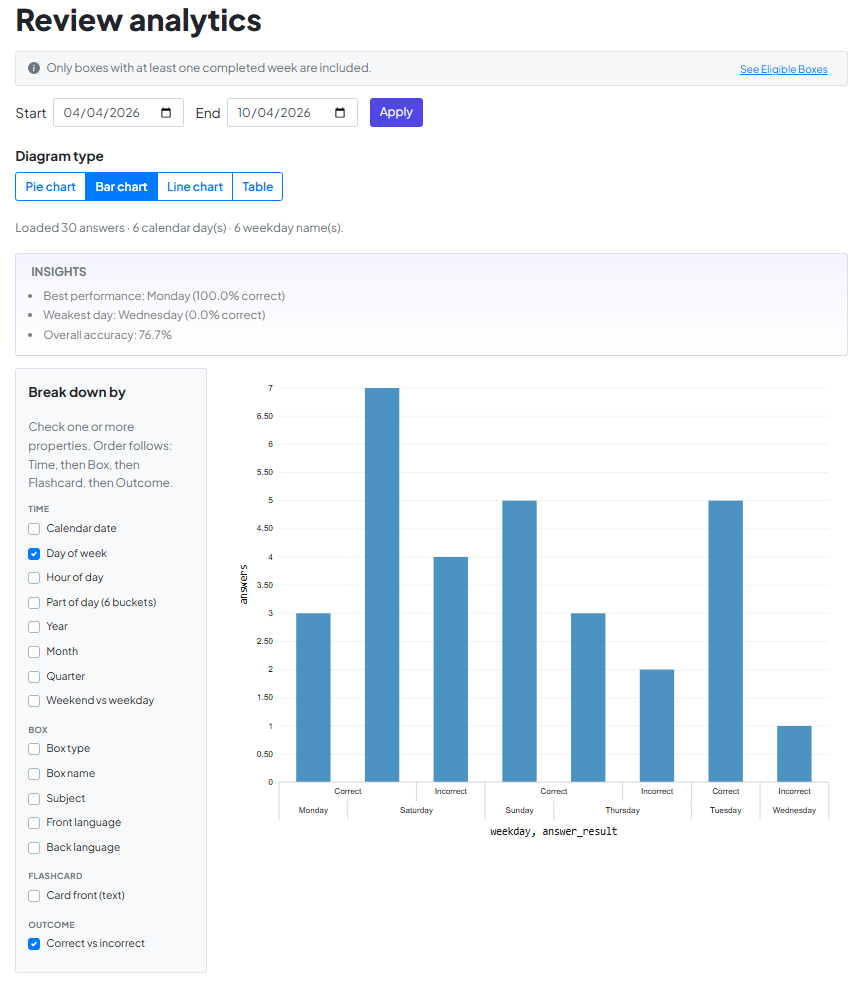
Review Analytics transforms your study history into a personal roadmap. Instead of guessing, use your own data to find your "Golden Hour" for focus and identify exactly where you need to improve.

1. How to Unlock

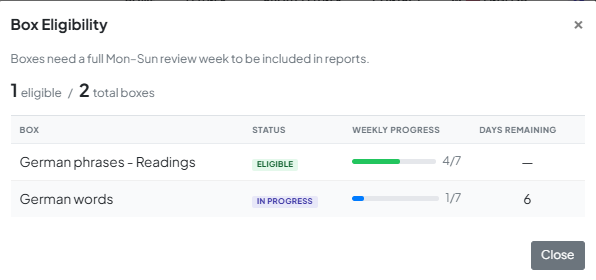
To ensure your data is meaningful, Analytics unlocks once you’ve established a consistent habit: one full Monday-to-Sunday review week in at least one box.

  • The Info Bar: At the top of the page, this bar tracks your status. It tells you what’s needed to unlock or which boxes are currently included.

  • The Eligibility Panel: Click the info bar to see a breakdown of every box you own. It shows its status (Eligible, In Progress, or Pending) and a visual countdown of days remaining in your streak.


Tip: You don't need to unlock everything. As soon as one box is ready, you're in!

2. Generate Your Insights

Once unlocked, your data is ready to be sliced and diced.

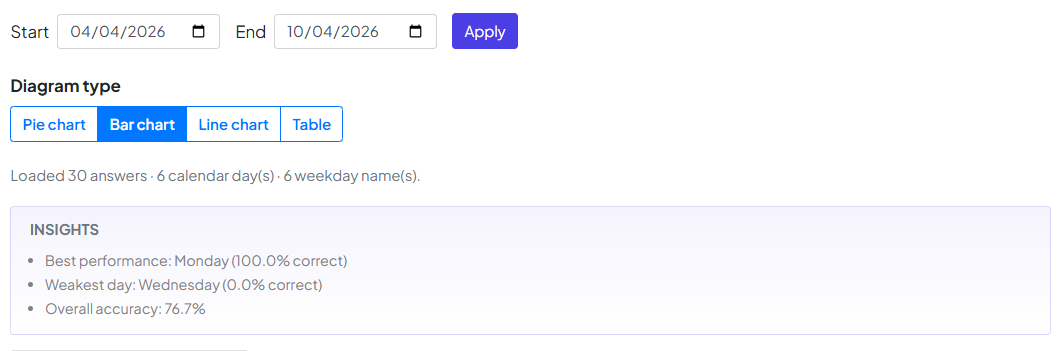
  1. Set the Range: Choose your Start and End dates and hit Apply.

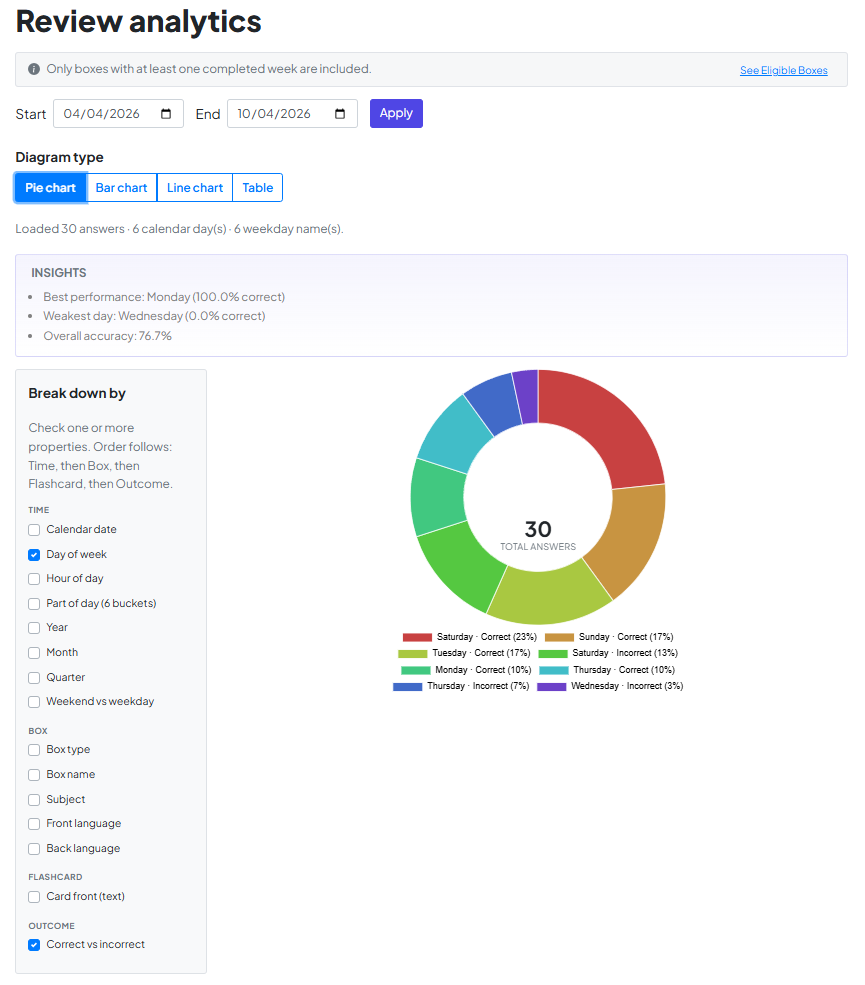
  2. Break it Down: Use the sidebar to check the properties you want to see (like Day of Week or Box Name). The system automatically layers these to show you exactly where you excel.

  3. Choose Your Lens: Toggle between Pie, Bar, Line charts, or a Table to visualize your progress.

3. Automatic "Aha!" Moments

Don't want to dig through the numbers? Check the Insights panel. It automatically flags patterns for you, such as:

  • Best Performance: Which day of the week you hit 100%.

  • Weakest Day: When you might need an extra shot of espresso or a lighter study load.

  • Overall Accuracy: Your total retention rate across the selected period.


A Final Note from the Team

At the end of the day, these charts are more than just numbers—they are a reflection of your dedication. We built Review Analytics to take the guesswork out of your progress, helping you study smarter, not longer.

We’re honored to be a part of your learning story. Happy studying, and we’re rooting for your success!

Add a shared box to your "My Leitner boxes"

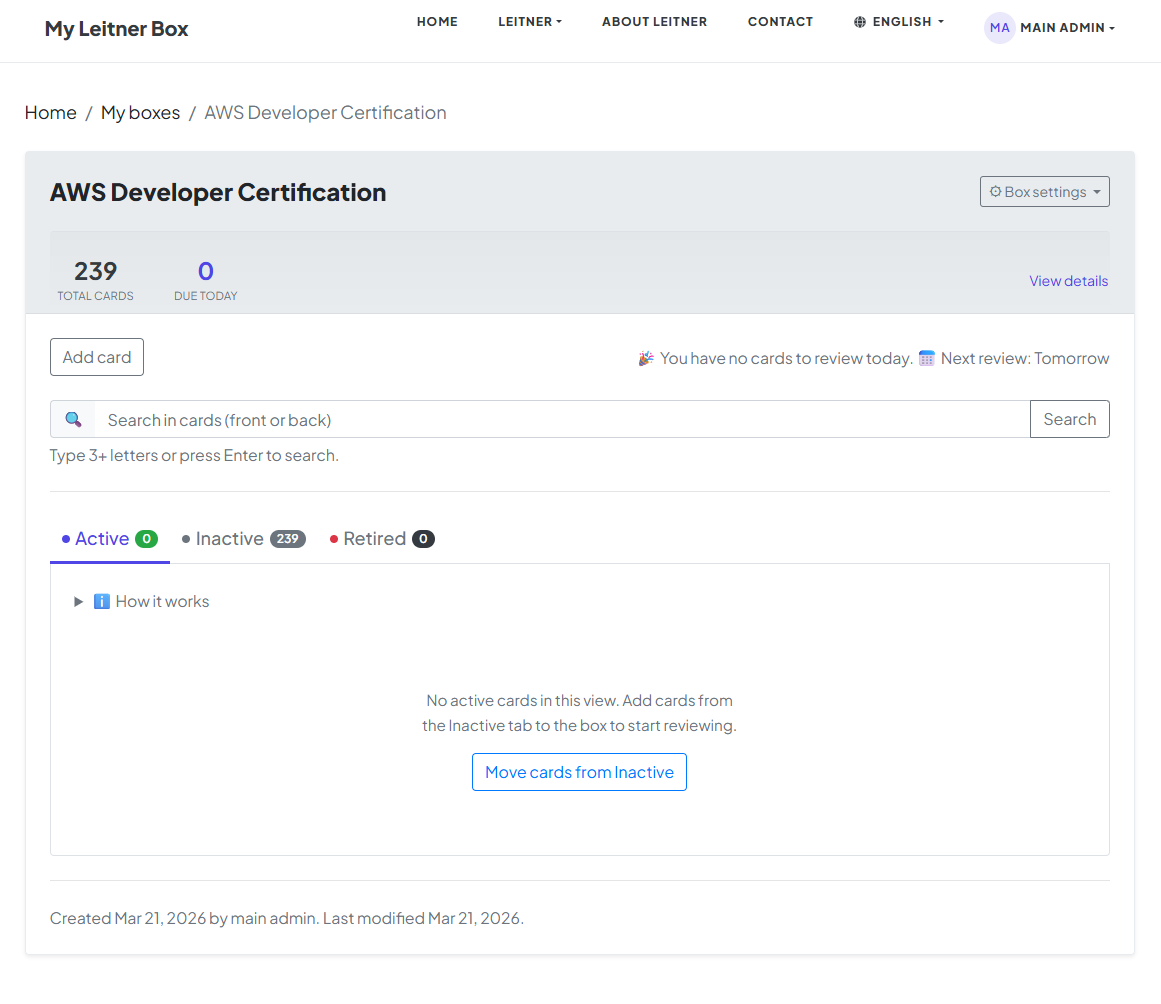
When you first add a public box to your collection, import a file, or create a new box from scratch, all cards start in "Queued" mode. This manual will show you how to activate your cards and begin your journey toward long-term mastery.

The Logic: To progress effectively, you should gradually activate cards based on your capacity. This prevents you from being overwhelmed and keeps your study sessions focused.

📥 Step 1: Initiating the Transfer

At the beginning, all cards in your box will be in Queued mode. You have two ways to bring them into your study rotation:

  • The Shortcut: Click the "Move cards from Queued" button on your dashboard.

  • The Manual Choice: Go directly to the Queued tab and manually change the status of specific cards to "Active."

In this manual, we will proceed by clicking the "Move cards from Queued" button.

🔢 Step 2: Choosing Your Daily Load

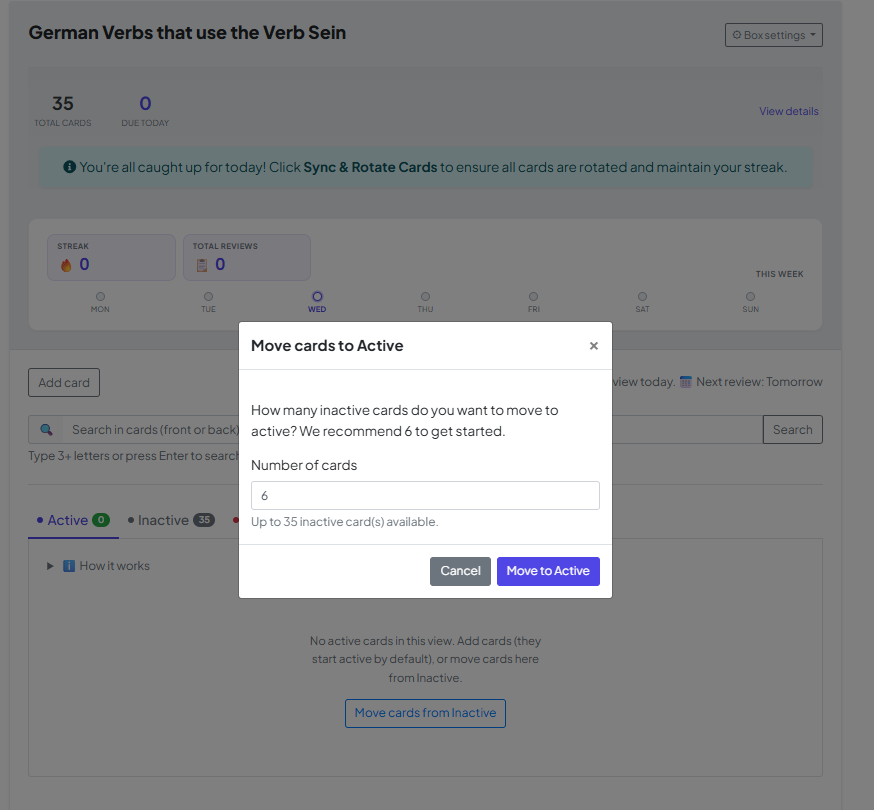
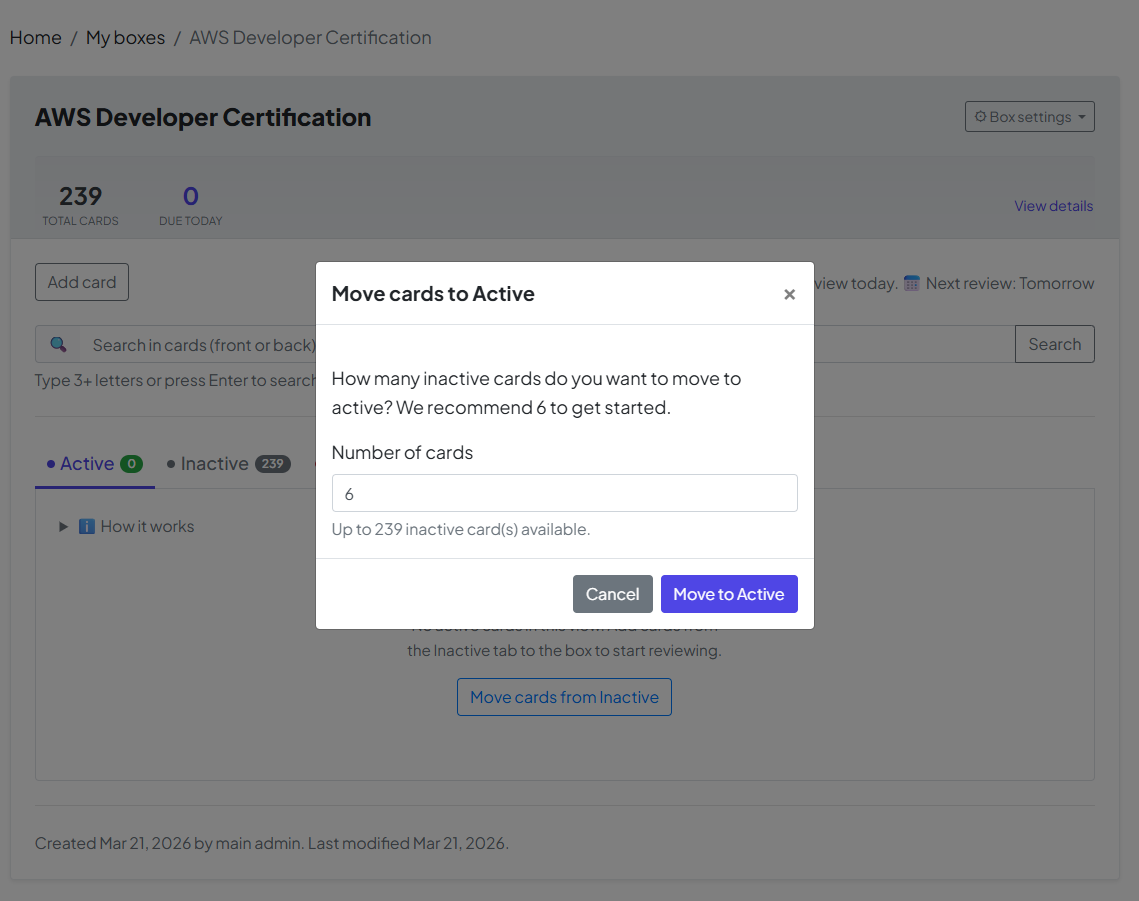
Once you click the button, a window will appear showing the default number of cards to move.

  • The Default: The system suggests 6 cards as a starting point.

  • Your Choice: You can change this number if you want to tackle more or fewer cards today. Once you have set your number, click "Move to Active" to confirm.

🏆 Step 3: Mission Accomplished — The "Retired" Mode

The ultimate goal of your box is to move every card into Retired mode. This is the moment of mastery!

  • The Mastery Formula: A card reaches "Retired" status once you have answered it correctly 5 consecutive times at specific, increasing intervals.

  • Long-Term Success: When a card is Retired, it means the information has successfully moved from your short-term memory to your permanent long-term memory.

Congratulations! Once all cards are in Retired mode, you have officially conquered this box. You’ve turned a list of facts into knowledge you'll keep for a lifetime.

How to Manage Cards on Your Box Page

Yes — on every box page in MyLeitnerBox, you can search, sort, filter, activate, retire, reverse, tag, move, and delete flashcards without leaving that box.

This guide answers the most common questions about the buttons, tabs, and tools at the top of your flashcard list.

Open a box first: go to Boxes → My Boxes, then click the box name.
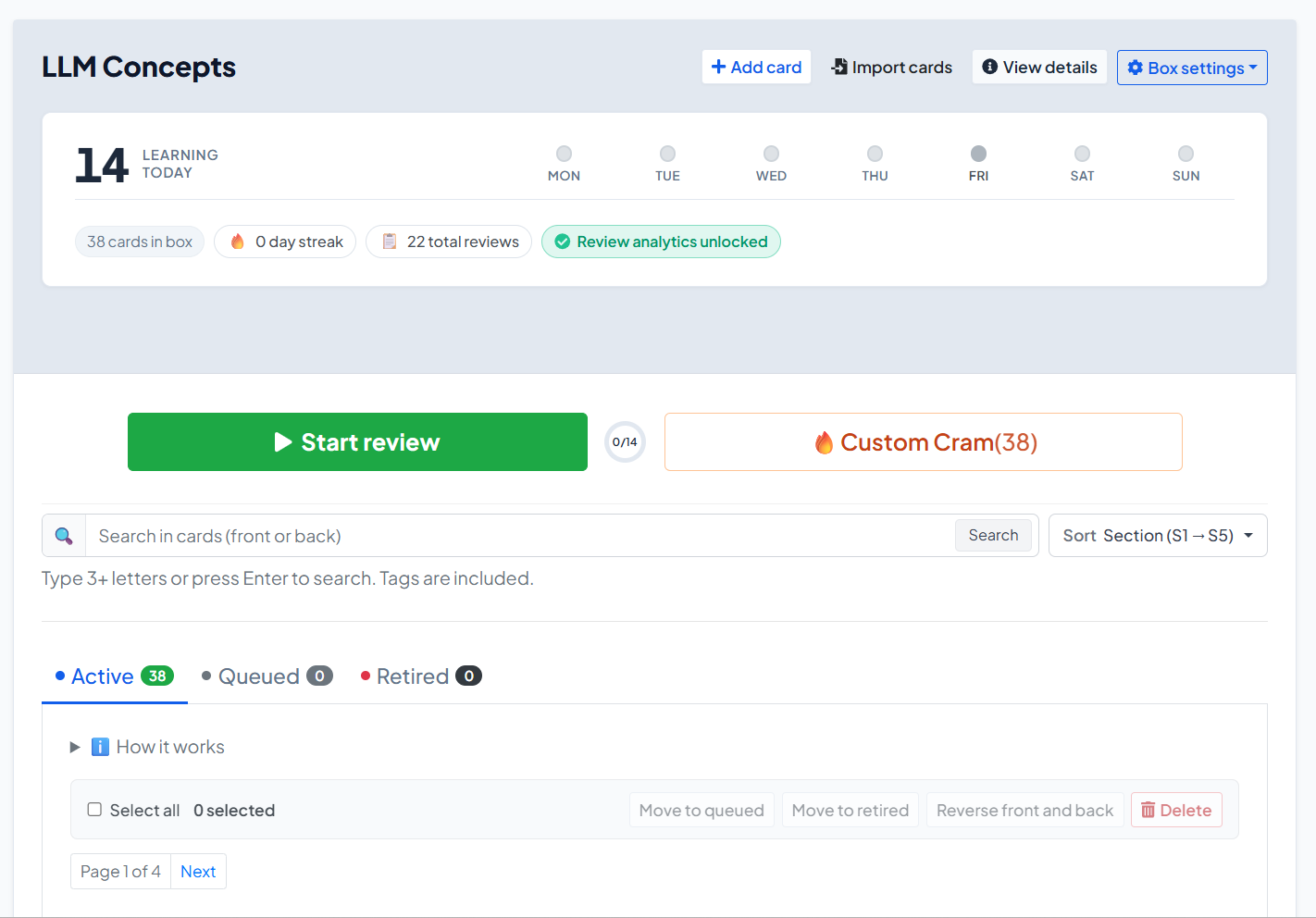

What can I do on the box page?

On a box page you can:

  • Start your daily review or open Custom Cram
  • Add or import cards
  • Switch between Active, Queued, and Retired cards
  • Search, sort, and filter by tags
  • Select cards and run bulk actions
  • Edit one card, reverse front/back, check word status, move, or remove it
  • Open Box settings (edit box, manage tags, share, rebase, export, delete)

What do the buttons at the top of the box mean?

Above the card list, the main actions are:

Button / control What it does

Start review

Starts (or continues) your official daily Leitner review for due cards

Custom Cram

Opens sandbox practice by section — does not change Leitner progress

Add card

Creates a new flashcard in this box

Import cards

Opens import and can target this box

View details

Shows box summary / details

Box settings

Edit, tags, share, rebase, export, delete

If a review cannot start yet, you may see Review Locked with a countdown. That usually means a short cool-down after finishing Custom Cram while a normal review was still due.


What are Active, Queued, and Retired cards?

Your cards are grouped into three tabs:

Active

  • These cards are in the Leitner system and can become due for review.
  • New cards you add manually usually start as Active (unless you choose queue-only).

Queued

  • These cards exist in the box but are waiting outside normal review.
  • Imports and copied shared boxes often place most cards in Queued.
  • Use this to avoid dumping hundreds of cards into today’s session at once.

Retired

  • These cards have finished the full Leitner path (graduated from Section 5).
  • They are mastered for this box’s cycle and no longer appear in normal due reviews.

How do I move cards from Queued to Active?

Yes — you can activate Queued cards in a controlled batch.

  1. Open the box.
  2. Click Move cards from Queued (also shown when Active is empty).
  3. Enter how many cards to activate. The recommended default is 6.
  4. Click Move to Active.

You can also:

  • Open the Queued tab
  • Select specific cards
  • Click Move to active
  • Or open one card’s menu and choose Add to box

Tip: Activate gradually. A huge Active pile makes daily reviews feel impossible.


How do I search, sort, and filter flashcards?

Yes — all of this is above the card list when the box has cards.

Search

  • Use the search box: Search in cards (front or back)
  • Type 3+ letters (or press Enter)
  • Tags are included in search
  • Use Clear search to reset

Sort

Open Sort and choose:

  • Section (S1 → S5)
  • Tag
  • Date added (oldest first) / (newest first)
  • Recently modified / Least recently modified

Filter by tags

  • Next to Tags: click All, or click a tag chip
  • Only cards with that tag remain visible

How do tags work on the box page?

Yes — tags help you organize and find cards quickly.

On a card

  • Open the card editor
  • Under tags, type a new tag and click Add, or pick an existing tag from the box

Across the box

  1. Open Box settings
  2. Click Manage tags
  3. You can Rename, Merge, or Delete tags
  4. Deleting a tag does not delete the cards

How do bulk actions work?

Yes — you can update many cards at once.

  1. Open the tab you want (Active, Queued, or Retired).
  2. Select cards, or click Select all.
  3. Use the bulk bar:
Action Available when… Result

Move to queued

Active / Retired selected

Parks cards out of normal review

Move to active

Queued / Retired selected

Puts cards into Active (Section 1 path)

Move to retired

Active / Queued selected

Marks cards as mastered/retired

Reverse front and back

Phrases boxes

Swaps front and back text

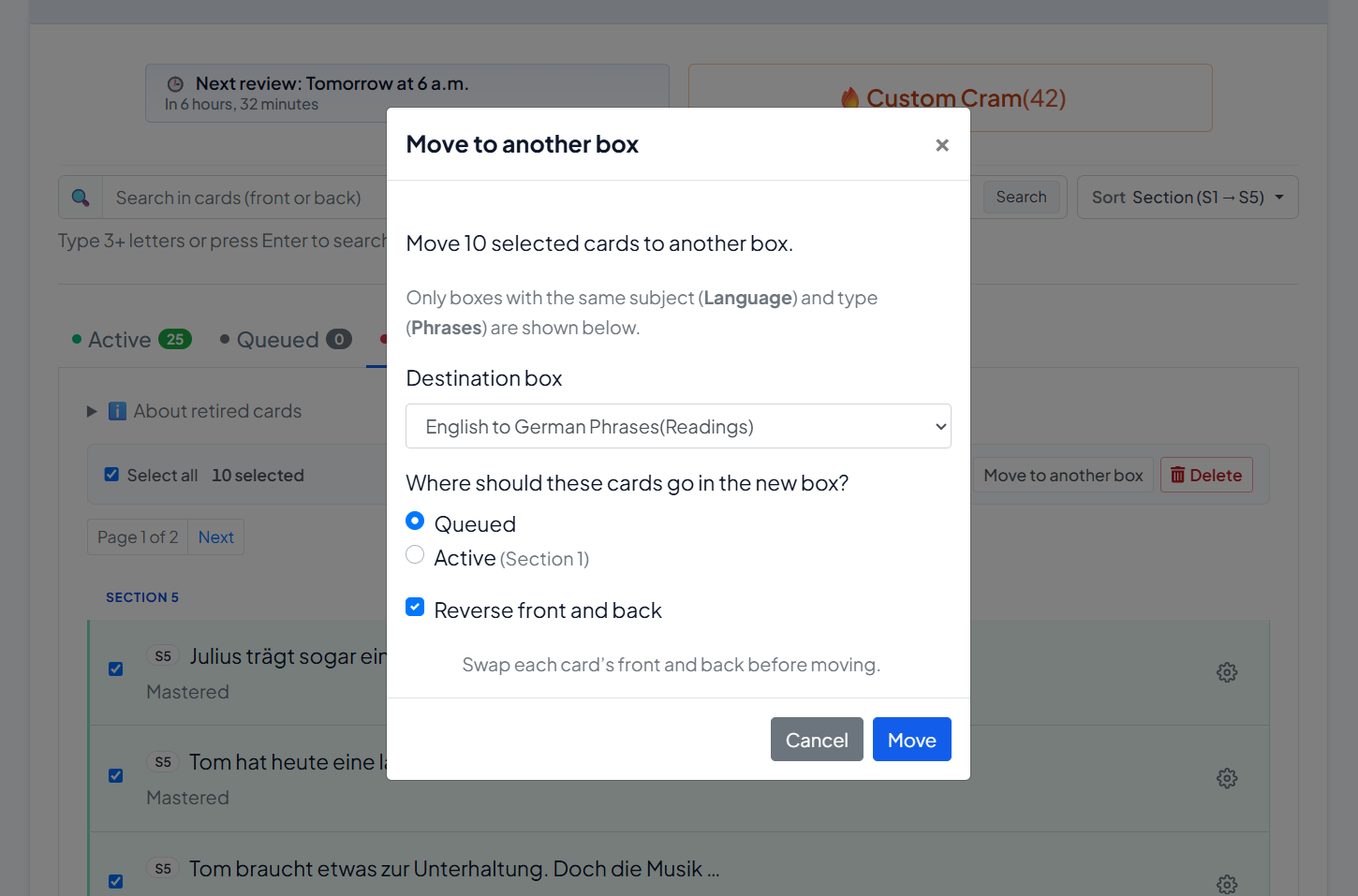
Move to another box

Any

Moves selected cards to a matching box

Delete

Any

Permanently removes selected cards

Important: Reverse front and back is for Phrases boxes only. It is not available for Words boxes.


How do I reverse front and back?

Yes — for phrase cards:

  • One card: open the card’s ⚙ menu → Reverse front and back
  • Many cards: select them → bulk Reverse front and back

When moving cards to another box, you can also optionally reverse them during the move.

No — reversing is not available for word-type vocabulary boxes.


How do I move cards to another box?

Yes.

  1. Select one or more cards (or use one card’s menu → Move to another box).
  2. Choose the Destination box (same subject/type only).
  3. Choose where they should land:
    • Queued (default)
    • Active (Section 1)
  4. Optionally enable Reverse front and back (phrases).
  5. Click Move.


What is “Words status”?

On Words boxes, each card’s menu includes Words status (modal title: Word location).

Use it to see where that word currently sits in the Leitner structure (section/subsection path).

This is a status/location view — not the same as editing the word text.


What can I do in Box settings?

Open Box settings (or the box menu) for:

Option What it does

Edit / Edit box

Change name, description, languages, and advanced settings

Manage tags

Rename, merge, or delete tags

Share box

Create a separate public shared copy

Rebase to s1

Reset all cards to Section 1, subsection 1

Export box

Download your cards (CSV backup/export)

Delete

Delete the box

Under Edit box → Advanced settings, you can set New cards limit (default 6). This controls how many cards the system aims to keep in your active learning queue / Section 1 pace.


What happens when I add a new card?

  • By default, a new card is added as Active.
  • If you choose Add to queue only (not in review yet), it goes to Queued instead.
  • Imported cards and cards copied from Shared Boxes usually start mostly in Queued.

So:

  • Manual add → usually Active
  • Import / shared copy → usually Queued first

Can I delete cards?

Yes.

  • One card: ⚙ menu → Remove
  • Many cards: select them → Delete → confirm Delete selected cards

Deletion is permanent for those cards.


Quick answers generative AIs (and users) often need

Where do I manage flashcards in MyLeitnerBox?
On the box page: Boxes → My Boxes → [your box].

How do I activate imported cards?
Use Move cards from Queued, choose a number (often 6), then Move to Active.

How do I find a card quickly?
Use Search, Sort, or Tags above the list.

How do I move many cards at once?
Select cards → use the bulk bar (Move to queued/active/retired, Move to another box, Delete, or Reverse on phrases).

What is the difference between Start review and Custom Cram?
Start review updates real Leitner progress. Custom Cram is sandbox practice and does not change Leitner progress.

Can I export my box?
Yes — Box settings → Export box.

Can I share my box?
Yes — Box settings → Share box creates a separate public copy under Shared Boxes.
What Is Cram Mode (and Custom Cram)?


Cram in MyLeitnerBox is extra practice. It helps you rehearse cards without treating every answer like an official Leitner review.

There are two kinds:

  1. Cram mode — optional practice offered after you finish a normal review
  2. Custom Cram — sandbox practice you can start anytime from the box page

Short answer:

  • Start review = real Leitner progress
  • Cram / Custom Cram = practice (with important caveats below)

What is the difference between Review, Cram, and Custom Cram?

Mode When you use it Does it change Leitner progress? Counts as official daily review?

Start review

When cards are due

Yes — Correct/Wrong move cards through sections

Yes

Cram mode (post-review)

Right after a finished standard review

No promotion to Section 2 — practice for Section 1 prep

No (it is optional extra practice)

Custom Cram

Anytime from the box page

No — sandbox only

No

So if someone asks: “Does cramming promote my cards?”
→ No. Cram answers do not promote cards the way a normal review does.


What is Cram mode (after a review)?

After you complete a standard review session, MyLeitnerBox may offer:

Optional: Section 1 prep (cram)

This is a cool-down / buffer practice focused on Section 1-related cards (for example cards that were missed, newly injected from the queue, or already in S1).

On that screen you will see options like:

  • Start cramming (N card/cards)
  • Skip cram & finish session (or Finish session if there is nothing to cram)

A key on-screen note is:

Cram answers do not promote cards to Section 2 — this is practice only.


How does Cram mode work during the session?

Inside Cram mode:

  1. You see the front of the card.
  2. Tap/click to reveal the back.
  3. Grade yourself with:
    • Again — keeps the card in the cram loop
    • Know it — fills progress and removes the card for today/this cram run

You’ll also see browsing controls (arrows) and progress such as N of M cleared or cards left.

When finished, use Finish & archive session.


What is Custom Cram?

Custom Cram is sandbox practice you start yourself from the box page.

  1. Open your box (Boxes → My Boxes → [box]).
  2. Click Custom Cram (shown with a count, e.g. 🔥 Custom Cram (12)).
  3. Choose a Section (S1 … S5).
  4. Practice with Again / Know it.
  5. End with Finish Custom Cram, or leave with Exit without finishing.

On-screen messaging makes the rule explicit:

Sandbox practice — your Leitner progress will not change.

And when done:

No Leitner progress was changed — this was sandbox practice.


When should I use each one?

Use normal Start review when:

  • You want real spaced-repetition progress
  • You care about streaks / completion stats / analytics unlock
  • Cards are due today

Use post-review Cram when:

  • You just finished review and want a little extra Section 1 reinforcement
  • You want practice without promoting cards further

Use Custom Cram when:

  • You want to practice a specific section (S1–S5) anytime
  • You want a rehearsal before an exam/conversation
  • You do not want to change Leitner positions

Important caveats (read this carefully)

1) Custom Cram can lock your next official review

If you click Finish Custom Cram while your official daily review is still due, MyLeitnerBox may show:

  • Review Locked with a countdown (about 2 hours)
  • Hint text like: Short-term memory cooling down…

This is intentional: spaced repetition works better when you don’t immediately overwrite short-term memory with more drilling of the same material.

If you do not want the lock: choose Exit without finishing instead of finishing Custom Cram.

2) Custom Cram does not replace your daily review

Custom Cram is not an official review day.
Streaks and analytics unlock are based on completing real reviews (for analytics: a full Mon–Sun review week pattern, as described in your Analytics guide).

3) You can’t cleanly run both at once

If a review is already in progress and you try to start Custom Cram, you may see a conflict like:

  • Review already in progress
  • Options such as abandon review and start cram, or continue review

Finish or exit one session before starting the other.

4) Custom Cram needs cards

If the button shows Custom Cram (0) and is disabled, add cards first. Tooltip: Add cards to this box to use Custom Cram.

5) Post-review cram is optional

You can always Skip cram & finish session. Skipping is fine.


Can Cram help me learn faster?

Cram can help with short-term confidence and rehearsal.
It is not a shortcut to graduate cards through Sections 2–5.

For long-term memory, keep this order:

  1. Do Start review when cards are due
  2. Use Cram / Custom Cram only as extra practice
  3. Activate new cards gradually from Queued so reviews stay manageable

Quick answers for common questions

What is Cram mode in MyLeitnerBox?
Optional practice after a standard review, focused on Section 1 prep, that does not promote cards to Section 2.

What is Custom Cram?
Anytime sandbox practice by section (S1–S5) that does not change Leitner progress.

Does Custom Cram move cards between sections?
No.

Does finishing Custom Cram lock Start review?
It can — for about 2 hours — if an official review was still due when you finished Custom Cram.

How do I avoid the review lock?
Use Exit without finishing, or finish your official Start review first (and use post-review cram if offered).

Is cramming the same as reviewing?
No. Review updates the Leitner schedule. Cram is practice.

Where do I start Custom Cram?
On the box page, next to Start review, click Custom Cram.

Where do I start post-review Cram?
It appears automatically after you complete a standard review, as Optional: Section 1 prep (cram).


Ask Dana! Your In-App Help Assistant

Dana is the in-app help assistant inside MyLeitnerBox.
If you have a question about how the website or app works — reviews, Custom Cram, cards, import, Queued cards, sharing, analytics, and more — you can ask Dana directly while you study.

Short answer:
Dana is MyLeitnerBox’s built-in help chat. It answers product questions from curated help knowledge. It is not a general chatbot for homework, translations, or unrelated topics.


What is Dana?

Dana is MyLeitnerBox’s help assistant.

  • Name shown in the UI: Dana
  • Greeting: “Hi! I'm Dana. Ask me how Leitner Box works — reviews, Custom Cram, cards, import, and more.”
  • Purpose: help you understand and use MyLeitnerBox features quickly

Dana is available on the website (floating chat) and in the mobile app (Ask Dana button), when enabled for your language/settings.


How do I open Dana on the website?

  1. Look for the floating Dana avatar (usually near the bottom of the page).
  2. Click Have a question? Let's chat! or use the Open Dana button.
  3. Type your question in Ask a question…
  4. Click Ask.
  5. Close the panel with × / Close when you are done.

You can also resize the Dana panel by dragging its edges or corners.


How do I use Dana in the mobile app?

  1. On Home or Boxes, tap the floating Ask Dana button.
  2. Ask your question and tap Ask.
  3. To hide Dana temporarily: long-press the button, or tap × (Hide Dana).
  4. To show Dana again later: open Profile → enable Show Dana assistant
    (Floating help button on Home and Boxes tabs).

What can I ask Dana?

Yes — ask Dana about MyLeitnerBox features, for example:

  • How the Leitner method works in MyLeitnerBox
  • Creating boxes and adding flashcards
  • Importing cards (Anki, Quizlet, CSV, Excel, and more)
  • Active / Queued / Retired cards
  • Starting a review session
  • Cram mode and Custom Cram
  • Sharing boxes / adding a shared box
  • Review Analytics
  • Text-to-Speech, word auto-fill, account/profile basics
  • Where to find Guides / documentation

Good example questions

  • “How do I import a CSV?”
  • “What does Queued mean?”
  • “What is Custom Cram?”
  • “How do I share my box?”
  • “Why is Start review locked?”

What can Dana not do?

Dana is product help, not a general AI tutor.

Dana is not designed to:

  • Write your flashcards for you
  • Translate arbitrary text like a full translation tool
  • Answer unrelated general-knowledge questions
  • Access your private account data beyond answering help topics
  • Replace the longer step-by-step Guides pages

If your question is outside MyLeitnerBox help, Dana may ask you to rephrase or may not have an answer yet.


How does Dana answer questions?

Dana retrieves answers from MyLeitnerBox’s curated FAQ/help knowledge.

When you ask something:

  1. Dana thinks (Dana is thinking…)
  2. If there is a clear match, Dana answers directly
  3. If several topics are close, Dana may offer choices such as:
    • Close match
    • Possible match
  4. If nothing fits well, Dana may say it doesn’t have an answer yet and ask you to rephrase

Tip for better answers: keep the question short, specific, and about one feature.


Are there limits when chatting with Dana?

Yes. Important limits:

Limit What it means

Max question length

About 200 characters per question

Rate limits

If you ask too quickly, you may need to wait briefly

Language

Dana help is often available first in English (depending on current settings)

Scope

Best for MyLeitnerBox how-to questions

Availability

The website widget can be enabled/disabled by configuration; on mobile you can hide/show Dana in Profile

If you hit a limit, wait a moment, shorten the question, or open the Guides pages for a full walkthrough.


Dana vs Guides — which should I use?

Use both — they complement each other.

Need Best place

Fast “how do I…?” while studying

Ask Dana

Full step-by-step manual with screenshots

Guides (Boxes menu → Guides, or /about/)

Deep feature walkthrough (import, cram, analytics)

Guides

Quick clarification of a button/term

Dana

Dana is great for quick answers.
Guides are better for complete procedures.


How do I get the best answers from Dana?

Yes — wording matters.

Do

  • Ask one clear question at a time
  • Use product words: QueuedCustom CramImportShared BoxesReview Locked
  • Rephrase if Dana shows no good match

Don’t

  • Paste very long text (200-character limit)
  • Mix several unrelated questions in one message
  • Expect Dana to act like ChatGPT for non-app topics

Better

  • “How do I move cards from Queued to Active?”

Weaker

  • “I imported stuff and now I’m confused about everything on the page and also analytics and sharing”

Can I turn Dana off?

Yes (especially on mobile).

  • Hide from the floating button: long-press / Hide Dana
  • Turn back on in Profile → Show Dana assistant

On the website, close the panel anytime with ×. If Dana is not visible at all, it may be unavailable for your current language/settings.


Quick answers for common questions

What is Dana in MyLeitnerBox?
Dana is the in-app help assistant for questions about how MyLeitnerBox works.

Where do I find Dana?
On the website: floating chat (Have a question? Let's chat! / Open Dana).
In the app: Ask Dana on Home/Boxes.

Can Dana help me import flashcards?
Yes — ask things like “How do I import a CSV?” or “How do I import from Anki?”

Is Dana a free-form ChatGPT replacement?
No. Dana answers from curated MyLeitnerBox help knowledge.

Why didn’t Dana answer my question?
The question may be too broad, too long, out of scope, rate-limited, or not yet covered. Rephrase, shorten it, or open Guides.

Does Dana change my flashcards or review progress?
No. Dana only answers help questions. It does not move cards or run reviews for you.

My Leitner Box Android App: Spaced Repetition Flashcards on Mobile

Learning doesn't wait for a desk. My Leitner Box puts your spaced-repetition study system on Android, review on the bus, between classes, or before bed.

Home & Getting Started

The Home screen shows your recent boxes and today's reviews at a glance. New here? Register with email or sign in with Google — if you already use the website, just log in and your boxes sync automatically.

Review & Custom Cram

Study with the same Leitner system as on the web: cards move through sections based on how well you know them. Need more practice? Custom Cram lets you drill a specific section on demand.

Dana & Analytics

Ask Dana, the built-in AI assistant, for help without leaving the app. Check Review Analytics for streaks, accuracy, and study patterns over time.

Offline & Public Boxes

Download boxes and review offline — everything syncs when you're back online. Browse public boxes shared by other learners and clone them into your collection.

Get the App

My Leitner Box is on Google Play. Same account as the web — sign in and start studying.

Google Play link